A video popup on your WordPress website can be a great addition to the content you offer on your site. It stands out just a bit more, giving you a better chance that your visitors will watch the video.
But how do you create a video popup in WordPress? You can do this in three different ways, including with the popup builder from Elementor Pro. In this article, we show three methods.
1. A video popup with the video widget
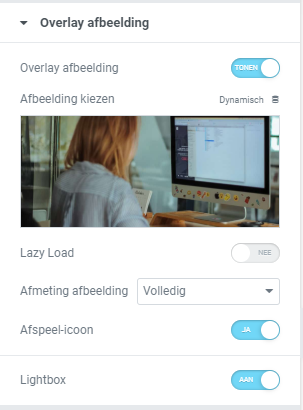
When you use the Video widget to place a video on your website, you have the option to enable the lightbox. This causes the video to pop up on your screen (in a so-called lightbox) and the background to blur (depending on how you have configured it).
You will find the lightbox function under the ‘Image overlay’ tab. Here you can enable or disable the lightbox. You can customise the lightbox styling in the ‘Style’ tab.
2. A video popup behind a button, icon or image
Do you have your own image, icon or button behind which you want to create a video popup? Then you can use the URL field for this.
- Select the element (the widget) where you want to place a video popup
- Click the dynamic icon in the link field and select ‘Lightbox’
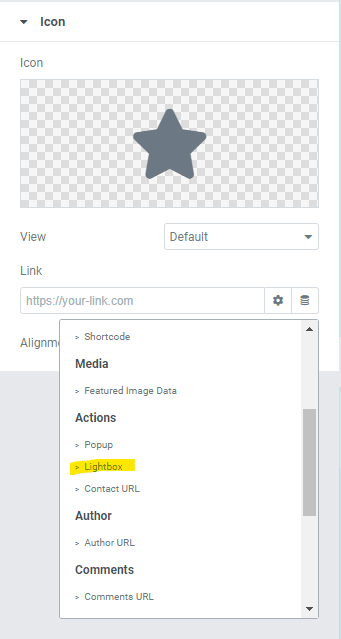
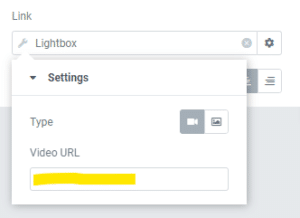
- Then click ‘Lightbox’ once more and enter the URL here.
3. A video popup in WordPress with Elementor’s popup builder
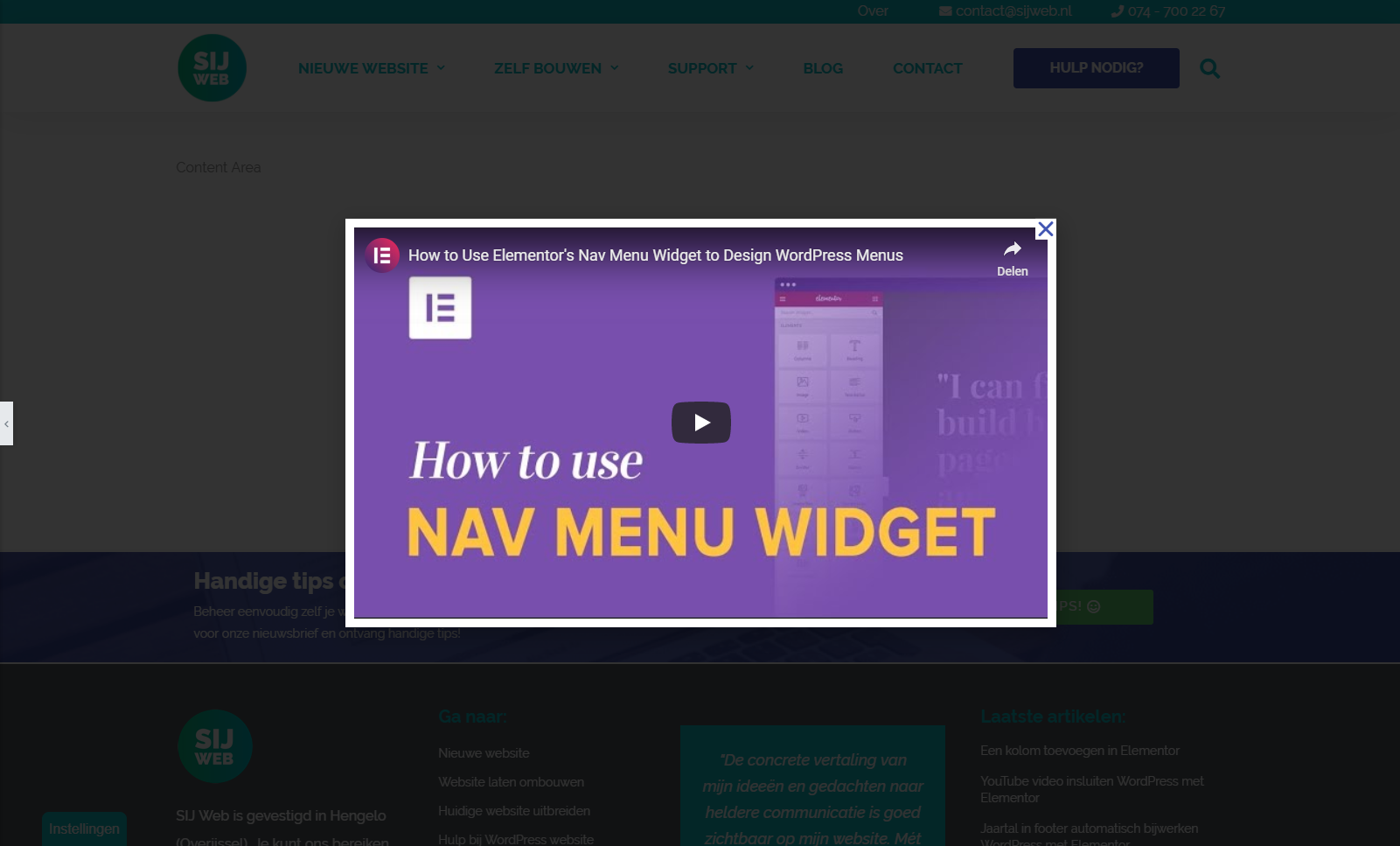
With the popup builder from Elementor Pro, creating a video popup in WordPress becomes even more exciting. You can truly go in any direction. For instance, you can create a slide-in, a classic popup, a fly-in or a full screen video popup.
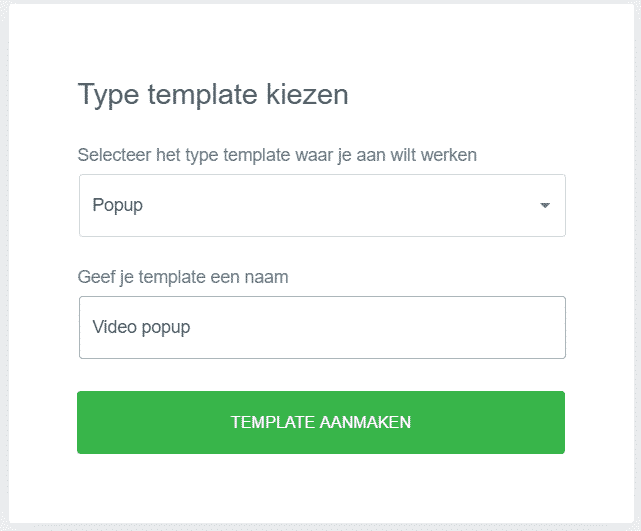
Step 1: create a new popup
Go to Templates -> Popup and click ‘Add New’. Give the popup a name, for example ‘Video popup’. You will immediately see a screen with popup templates. Close this by clicking the cross.
Step 2: add the video to the popup
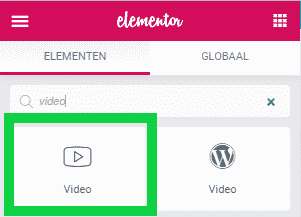
With the video widget, you can add a video to the popup just as you would on a page. If desired, you can use more widgets for your popup. In this example, we only use the video widget. Add it to the page and configure the video.
Step 3: configure the popup layout
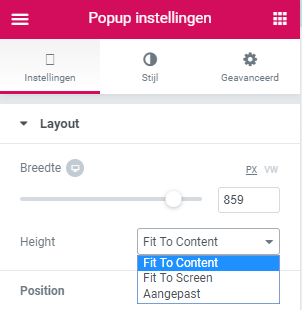
Once you have added the video to the popup, continue with the popup layout:
Fit to content When placing a video in a popup, it is handy to choose ‘Fit to content’ in the layout settings. The proportions you set for your video are then automatically adopted by the popup. This way, you have no unnecessary white space around your video. With the ‘width’ option, you can make the video larger or smaller.
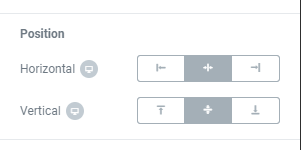
Video position With ‘Position’, you determine where on the screen you want to display the video. For example, you can show it in the centre, top right, bottom left, bottom centre, etc.
Overlay Want the video to stand out? Then set an overlay for the background colour of the video popup (your website). For instance, you can make it slightly darker. You adjust the overlay colour in the ‘Style’ tab.
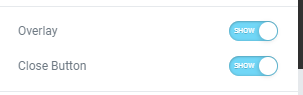
Close button Give the visitor the option to close the video with the close button. In the ‘Style’ tab, you can adjust the colour and size of the close button.
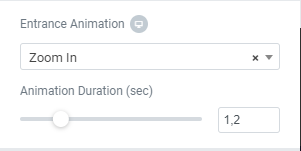
Entrance animation Set an entrance animation for your video. For example, a slide in, zoom in, bounce up, etc.
Other settings
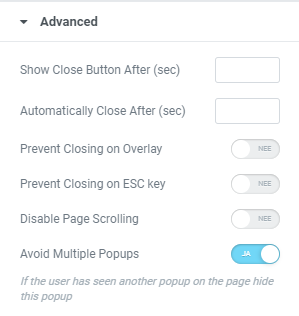
Additionally, there are a few more settings for the popup. You will find these in the ‘Advanced’ tab. For instance, you can set the video popup to close automatically after a while and prevent website visitors from quickly dismissing the video. You can also disable page scrolling. Handy, but do note: this can be quite irritating for your website visitors.
Step 4: publish the video popup
When you have finished creating the video popup, you can publish it. You have a number of options:
Display conditions Here you determine on which pages you want or do not want to show the video popup.
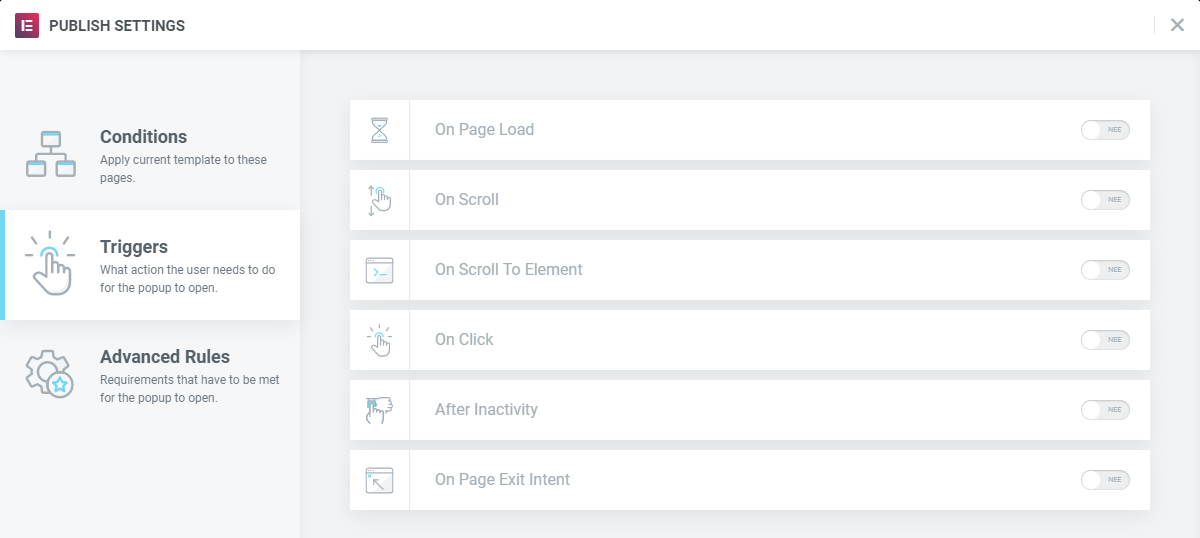
Triggers With triggers, you can specify when the popup should be displayed. For example, when the page loads, when the visitor scrolls or when the visitor is about to leave the page.
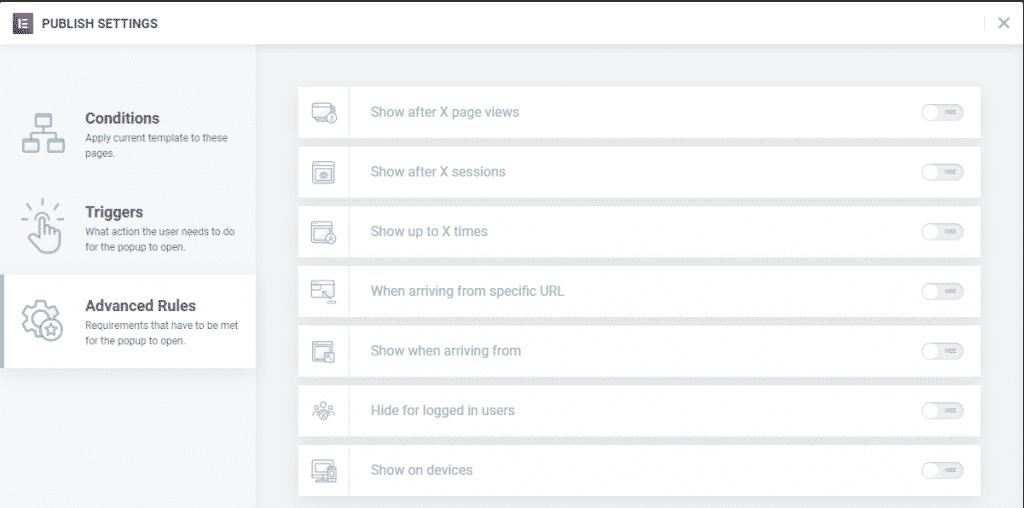
Advanced rules
Additionally, there are a number of display options. For instance, you can prevent a popup from being shown too frequently. You can also disable the popup for logged-in users. Below is an overview of all options. Set the rules to your preference and then publish the popup.

About the author
Leon
Founder and WordPress Developer
Leon Katz founded WP Agency driven by his passion for WordPress and web development. With over 20 years of experience in the technical sector, he helps…
Learn more about this author →