When you work with the Theme Builder in Elementor Pro, you can create templates for (custom) post types, headers and footers, and your webshop products. Additionally, with display conditions, you can set where you want the template to appear, whether on a specific page, in a particular category or taxonomy. You can also create combinations or exclude pages or taxonomies. The display conditions in Elementor make it possible, for instance, to set up multiple headers on your website. In this article, I will explain exactly how this works.
1. Create a template
To begin, you naturally need a template for which to set conditions. You create this via the Theme Builder. For example, create a single template for a custom post type. Already have a template? Then you can simply edit it with the Elementor Editor.
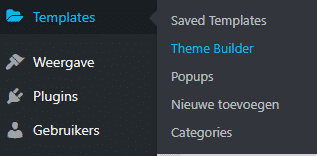
2. Finding the display conditions
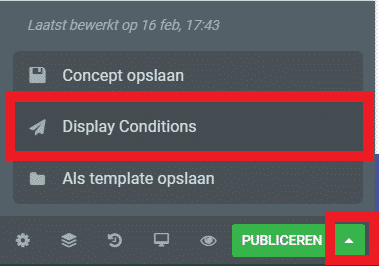
When you first publish a template (by clicking the ‘Publish’ button at the bottom), a window automatically appears where you can set the display conditions. If you have already created a template and want to reset or change the display conditions, go to ‘display conditions’. You will find this option when you click the arrow on the ‘Publish’ button.
A new screen then opens where you can set the display conditions:
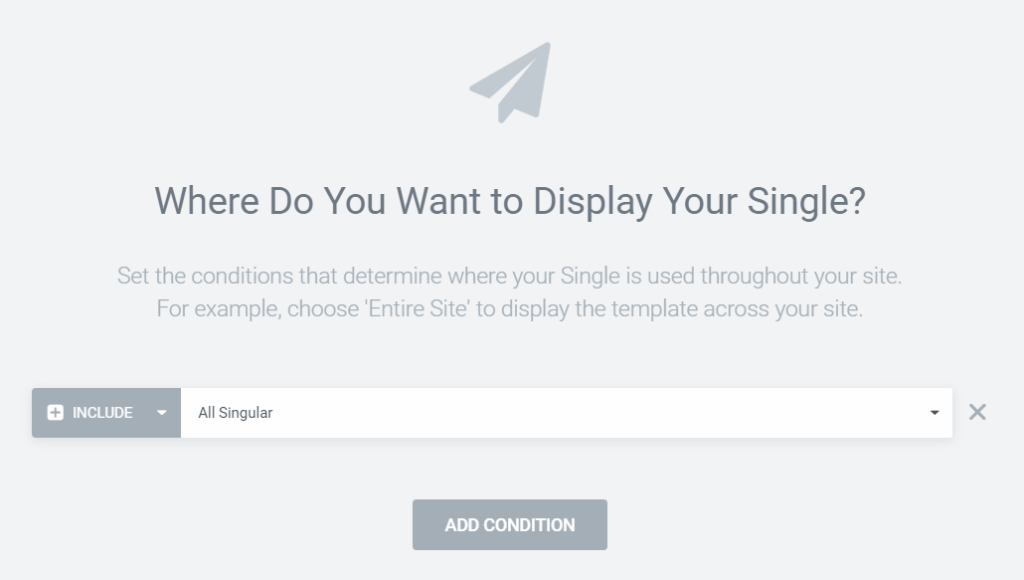
3. Available conditions
With Elementor’s display conditions, anything is possible:
Entire website
When setting up headers and footers, you have the option to set them for the entire website.
Front page
When setting up a single template, you can also configure it for the homepage. It is nice that this option exists, but in principle you can also simply set this in WordPress itself.
All singular
Apply the template to all pages you create on the website, regardless of the post type.
Post types
You can use display conditions for specific (custom) post types. Such as posts, pages, but also custom post types like team members or a portfolio. If you have created a custom post type, you will see it listed here.
- In category — Within post types, you can also select in which category you want to apply the template.
- Child category — You can use this option when you only want to publish the template in a specific child category.
- In tag — Publish the template only for posts/pages with a particular tag.
- By author — Use the template only for pages created by a specific WordPress author.
All products (WooCommerce)
Set up the template for products in the webshop or specify particular categories. You will only see this option when you create a single product template.
4. Excluding pages or posts
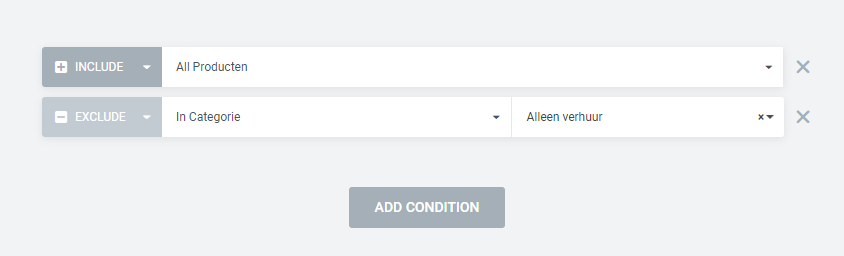
In addition to setting the template for certain pages, you can also exclude specific pages. To do this, change the ‘Include’ option to ‘Exclude’ and then select the page, category or taxonomy you want to exclude in the same way.

Cannot find the condition you are looking for? You can always create a new taxonomy, for example with the Pods plugin, which you can use for display conditions.
5. Setting multiple conditions
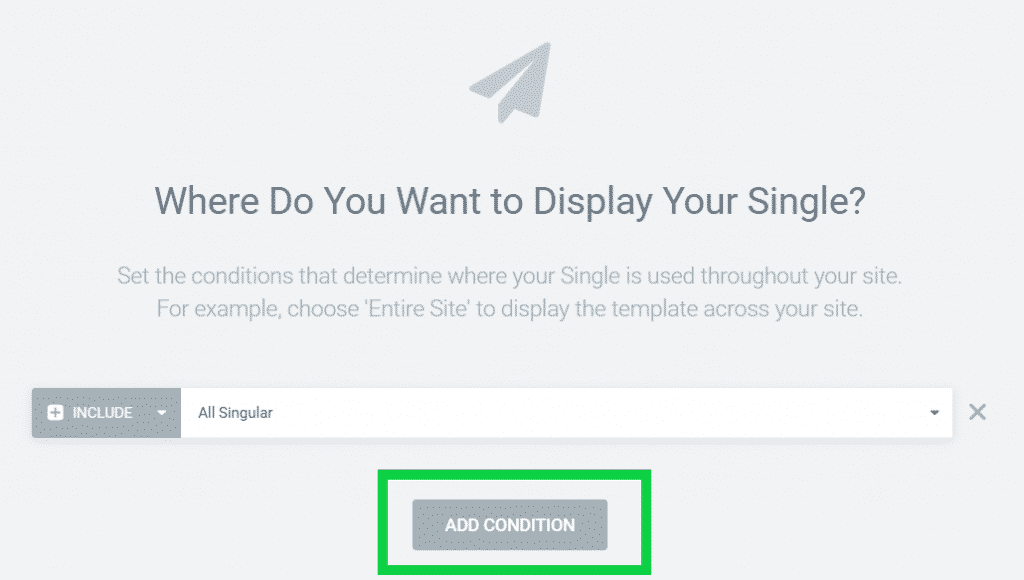
You can also choose to set multiple conditions for your template. For instance, if you want to exclude the template for a specific page or use a template for multiple post types. You do this simply by clicking ‘Add condition’.
Duplicate display conditions?
You need not worry about accidentally setting multiple display conditions for your template. You will receive a notification that a template has already been set for those conditions.

About the author
Leon
Founder and WordPress Developer
Leon Katz founded WP Agency driven by his passion for WordPress and web development. With over 20 years of experience in the technical sector, he helps…
Learn more about this author →